
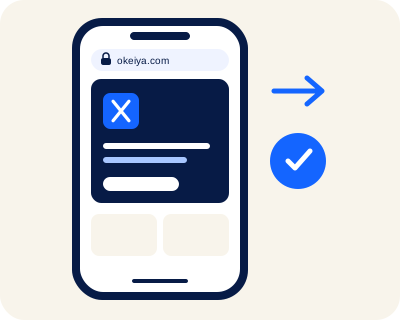
Within easy reach

Your website, on the home screen.

Members can find their association’s website through an icon on their phone. On iPhone, Safari can open it as a web app. On Android, Chrome can create a shortcut, or install a web app when the website offers one.

iPhone · Safari

  1. 1. Open the website in Safari

    Go to your association’s website in Safari.
  2. 2. Share and choose the home screen

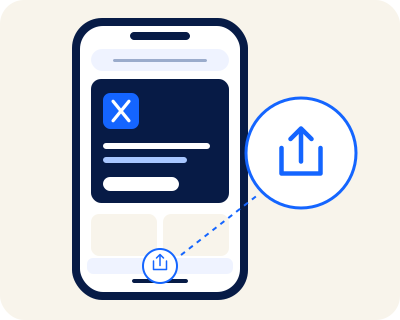
    Open the page menu, then Share (or tap the share icon directly). Scroll through the actions and choose Add to Home Screen.
  3. 3. Add the icon

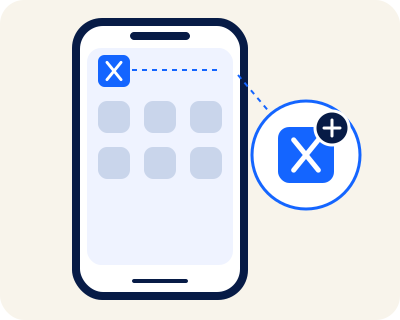
    Enable Open as Web App if the option appears, then tap Add. Open the website from its new icon.
Official Apple guide ↗

Android · Chrome

  1. 1. Open the website in Chrome

    Go to your association’s website in Chrome on your Android phone.

  2. 2. Open the More menu

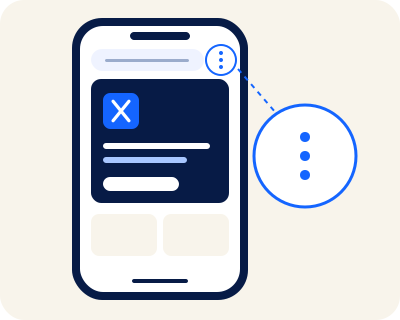
    Tap the three dots, then Install and create shortcut and Create shortcut. If a web app is available, Chrome may offer Install.

  3. 3. Confirm the addition

    Choose a name, then tap Add and confirm if your phone asks. The icon gives you access to the website; a Chrome shortcut opens in Chrome.

Official Chrome guide ↗

Illustrations of the steps. Menu names may vary by browser version. Home-screen access does not turn the website into an app-store application or guarantee offline use.